Stays on your
chosen screen.
Choose a display and keep the Dock from switching by accident.
Early Support Offer $5 once for the first 100 licenses, then $9. See the offer
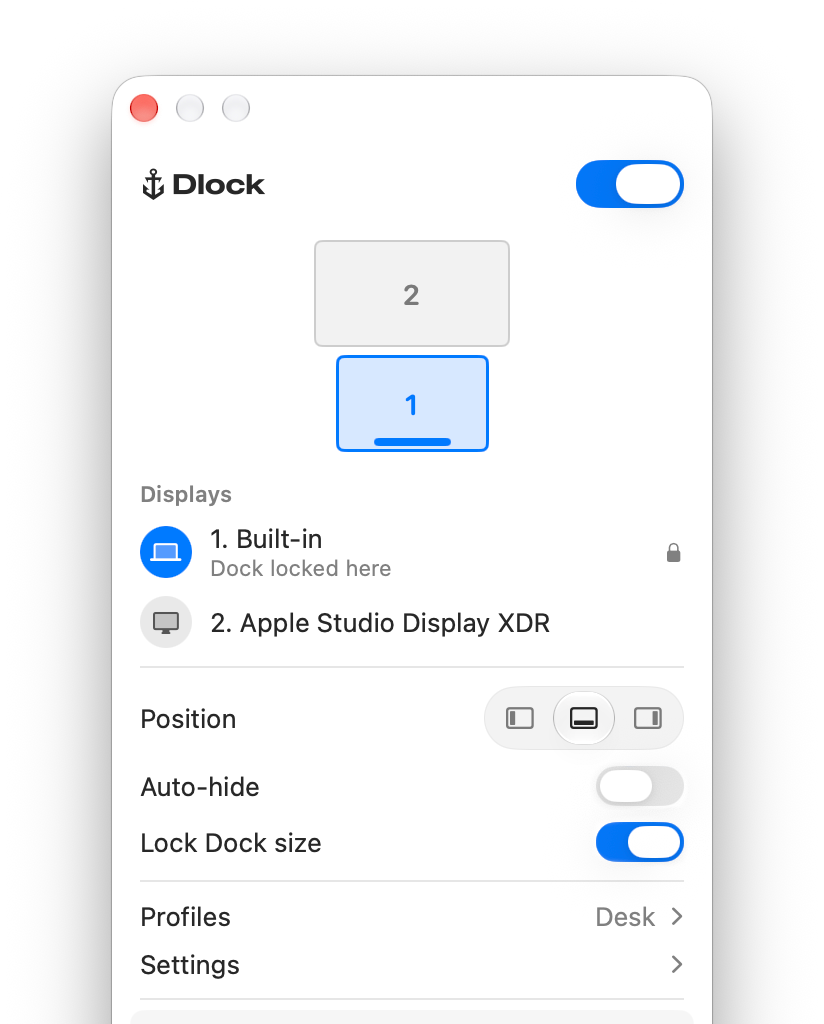
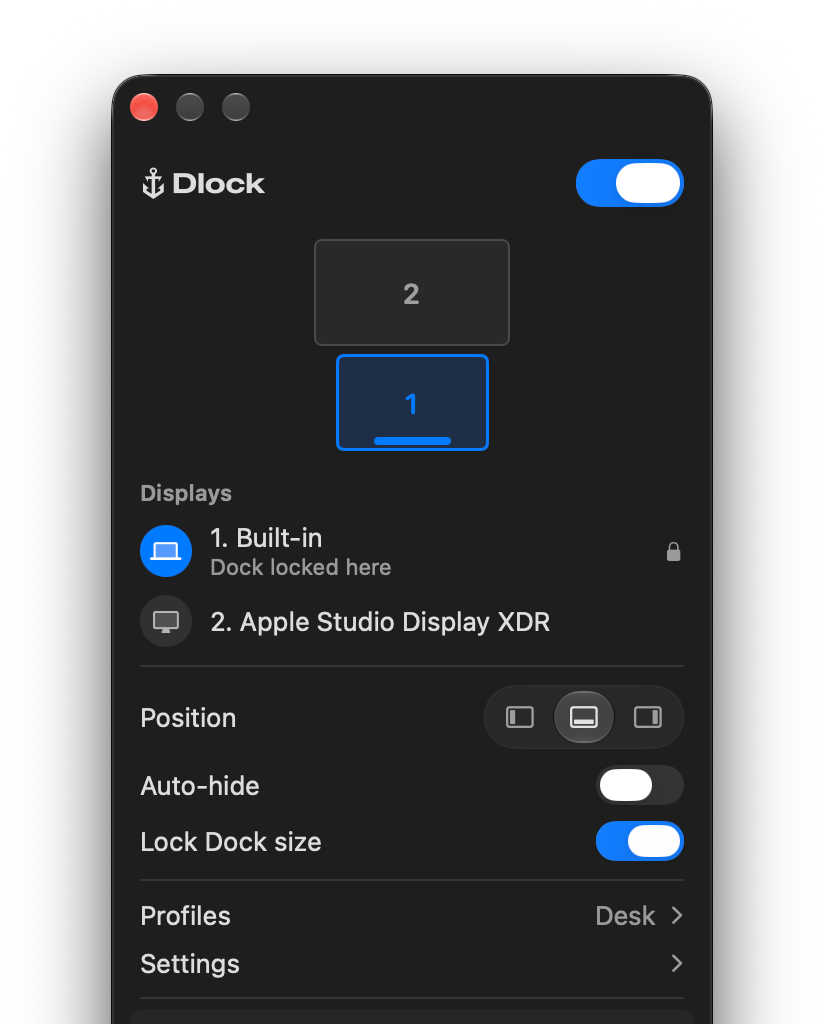
Choose a display and keep the Dock from switching by accident.
Hold Option, or your own shortcut, to temporarily move the Dock to another screen.
Save your display, Dock position and auto-hide preference. Restore eligible profiles when your displays match.
Adjust macOS auto-hide from Dlock. Full-screen and screen-sharing behavior can vary.
Prevent accidental resizing. This macOS preference stays on after Dlock quits until you turn it off.
Close the controls and Dlock keeps running. Open them again from the menu bar or with a shortcut.
Dlock requires macOS 13 or later and extended displays. Intel Macs and some display technologies have not yet been physically verified. Compatibility depends on your setup. Get display help.
Dlock needs Accessibility access to keep the Dock on your preferred display. Information accessed for this purpose stays on your Mac. Read more about privacy.
Yes. You can choose Left, Bottom, or Right. Display locking has been tested with a bottom Dock; macOS placement rules limit where a side Dock can appear.
Dlock remembers your preferred display and tries to restore the Dock when it reconnects. Results depend on your setup. Get reconnect help.
Yes. Each license works on one Mac at a time. Deactivate it in Dlock on your old Mac before activating it on another. If your old Mac is unavailable, contact us for help. Read the terms.
Find and manage your license in the Dlock License Manager.
You can request a refund within seven days if Dlock doesn’t work as advertised. See the Refund Policy.
Need a hand with your setup? Read the Troubleshooting guide
 Dodo Payments